
How to Choose the Right WordPress Plugin When Several Do the Same Job
Search the WordPress plugin directory for almost any feature (SEO, forms, caching, backups, membership) and you will find several mature, well-reviewed plugins that appear to do the same thing. Picking one by star rating or by the longest feature list is tempting, but a plugin is a long-term dependency. It runs on every request, touches your database, and becomes part of your security surface. A poor choice shows up months later as slow pages, a conflict after an update, or content that breaks when you try to switch.
This article sets out a repeatable, six-step framework for evaluating competing plugins, followed by a worked example comparing four popular SEO plugins.
The framework at a glance
The approach is simple: filter hard and early, so that you only spend real testing time on two or three serious candidates. Then score those finalists against your own requirements, not against the plugin’s marketing page.
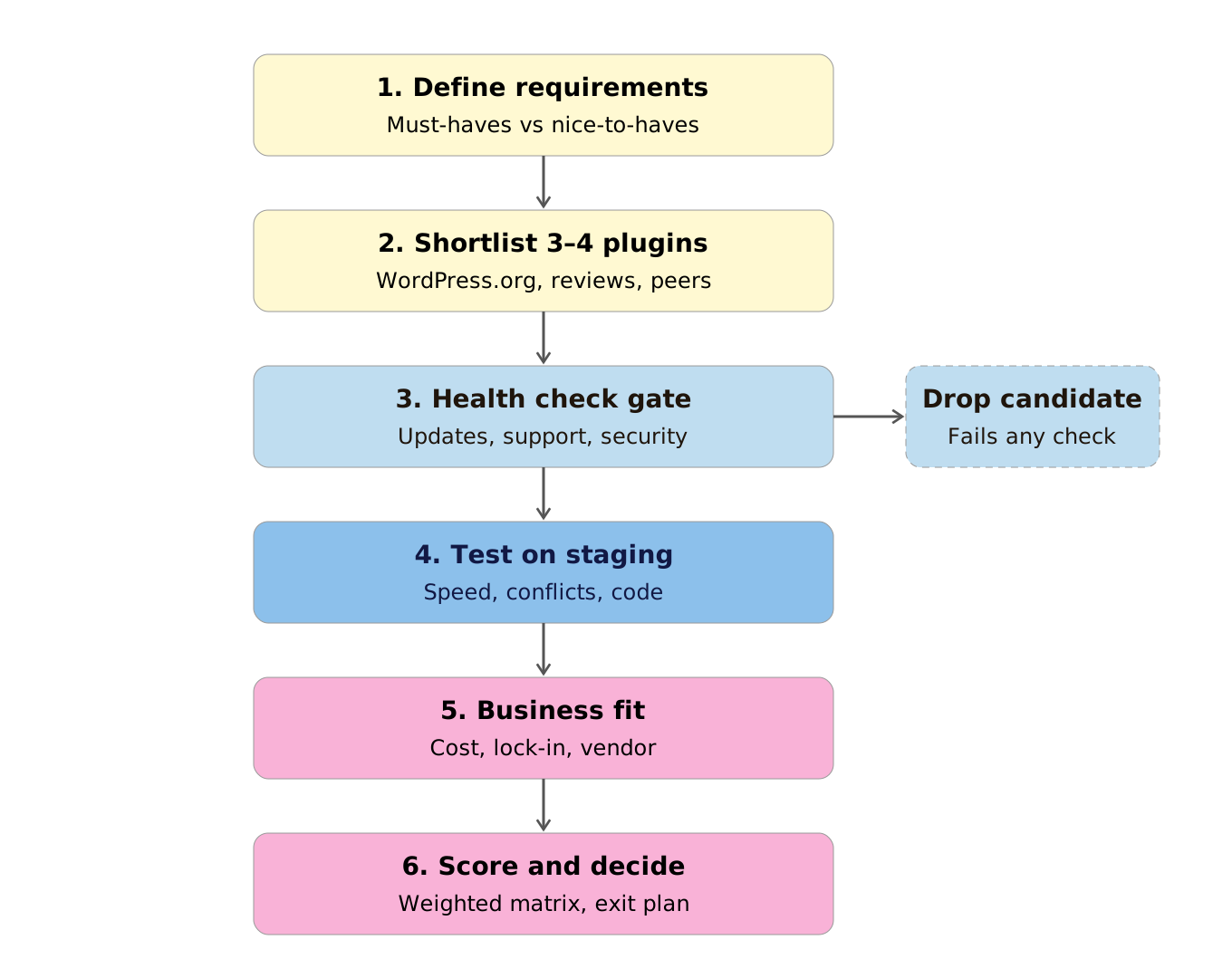
- Define requirements
- Shortlist three to four plugins
- Apply a health check gate
- Test on staging
- Evaluate business fit
- Score and decide
Step 1: Define your requirements
Before opening the plugin directory, write down three to five must-have capabilities and a short list of nice-to-haves. Include non-functional requirements such as hosting constraints, budget, and who will use the plugin day to day (a developer, or a non-technical client).
This step also prompts an important question: do you need a plugin at all? Some needs, such as a small custom post type, a tracking snippet or a minor tweak to the login screen, can be met with a few lines in a small site-specific plugin. That option carries no update risk and no extra overhead.
Step 2: Build a shortlist
Start with the official WordPress.org plugin directory, then add recommendations from developers who build sites similar to yours. Treat generic “top 10 plugins” articles with caution, as many are driven by affiliate commissions rather than hands-on testing. Aim for three or four candidates; more than that dilutes the evaluation.
Step 3: Apply the health check gate
This is a pass/fail filter. A candidate that fails any check is dropped, no matter how attractive its features are.
- Last updated: the plugin should have been updated within the last three to six months.
- Compatibility: it should be tested with your WordPress version and support your PHP version.
- Active installations: wide adoption means bugs are more likely to be found and fixed before they reach you.
- Support quality: on the WordPress.org support tab, review the ratio of resolved issues over the last two months, and read how the developer responds to critical threads.
- Security track record: check vulnerability databases such as Patchstack and WPScan. Having had a vulnerability is not disqualifying. What matters is how quickly it was disclosed and patched.
Step 4: Test on a staging site
Install each finalist on a staging copy of the site. Never evaluate plugins on production. Focus on four areas:
- Performance: use Query Monitor to inspect the database queries and hooks each plugin adds. Compare page speed and time to first byte before and after activation, and check whether the plugin loads its CSS and JavaScript on every page or only where it is needed.
- Database footprint: look at the size of autoloaded options and any custom tables the plugin creates.
- Compatibility: confirm it works with your theme, page builder, caching layer and other key plugins.
- Code quality: for developers, a brief review is worthwhile. Look for nonce checks, proper sanitisation and escaping, and prepared database queries.
Step 5: Evaluate business fit
- Licensing and cost: identify exactly which features are in the free version and which require a paid licence, and calculate the annual cost across all the sites you manage.
- Vendor stability: a plugin backed by an established company or team carries less risk than one maintained by a single developer in their spare time.
- Lock-in: consider what happens if you remove the plugin later. Do shortcodes or blocks break? Can you export your data? Does uninstalling clean up the database?
Step 6: Score and decide
Assign a weight to each criterion based on the requirements from Step 1, score each finalist, and calculate a weighted total. Record the reasoning behind the decision along with an exit plan: which alternative you would migrate to if the chosen plugin is abandoned or changes direction after an acquisition.
Worked example: choosing an SEO plugin for a client blog
Consider a content-focused client blog on modest shared hosting. The client needs schema markup, XML sitemaps, redirect management and an editor experience that non-technical authors can use. They also want to keep annual licensing costs low.
Shortlist: Yoast SEO, Rank Math, SEOPress and All in One SEO (AIOSEO).
Health check: all four are actively maintained, widely used and have a record of addressing security issues, so none is eliminated at this stage. In less mature categories, this step often removes half the shortlist.
Staging test: each plugin is installed in turn and assessed for admin overhead, front-end markup, and whether required features such as redirects and schema are available in the free tier or only in a paid plan.
Scoring: the weights below reflect this client’s priorities. The scores are illustrative; your own results will depend on your site and requirements.
| Criterion | Weight | Yoast | Rank Math | SEOPress | AIOSEO |
|---|---|---|---|---|---|
| Free-tier coverage (schema, redirects) | 30% | 3 | 5 | 4 | 3 |
| Performance on staging | 25% | 3 | 4 | 5 | 3 |
| Vendor stability and track record | 20% | 5 | 4 | 4 | 4 |
| Lock-in and clean exit | 15% | 4 | 3 | 4 | 3 |
| Client-friendly interface | 10% | 5 | 4 | 3 | 4 |
| Weighted score | 3.75 | 4.15 | 4.15 | 3.30 |
Decision: Rank Math and SEOPress tie. The tie is broken by returning to the client’s top priority. If minimising cost matters most, Rank Math’s broader free tier makes it the stronger choice. If a lighter footprint and white-label options matter more, SEOPress wins. Either way, the decision and the fallback (“if the chosen plugin is discontinued, migrate to the runner-up using its built-in import tool”) are documented for whoever maintains the site next.
Keeping your plugin choices healthy over time
- Re-run the health check gate on every installed plugin at least once a year.
- Prefer focused plugins that do one job well over large suites that bundle many features you will never enable.
- Keep a simple plugin register for each site that records why each plugin was chosen and what replaces it if needed.
Key takeaways
- Define requirements before browsing, and consider whether custom code would serve better than a plugin.
- Use a strict pass/fail health check to narrow the field quickly.
- Test finalists on staging for performance, compatibility and code quality.
- Weigh licensing, vendor stability and lock-in alongside features.
- Decide with a weighted scoring matrix, and always document an exit plan.
Frequently asked questions
How many plugins is too many for a WordPress site?
There is no fixed number. A handful of poorly written plugins can slow a site more than dozens of well-built ones. Judge each plugin by its performance impact and maintenance record rather than by the total count.
Are premium plugins safer than free ones?
Not necessarily. A paid licence often funds better support and faster updates, but security depends on the developer’s practices. Apply the same health check to free and premium plugins alike.
How do I check whether a plugin slows down my site?
Measure page speed and time to first byte on a staging site before and after activation, and use Query Monitor to see the database queries, hooks and assets the plugin adds.
What should I do if a plugin I rely on is abandoned?
Follow the exit plan recorded when you chose it. Test the replacement on staging, migrate settings and data with an import tool where available, and remove the old plugin once everything is verified.
